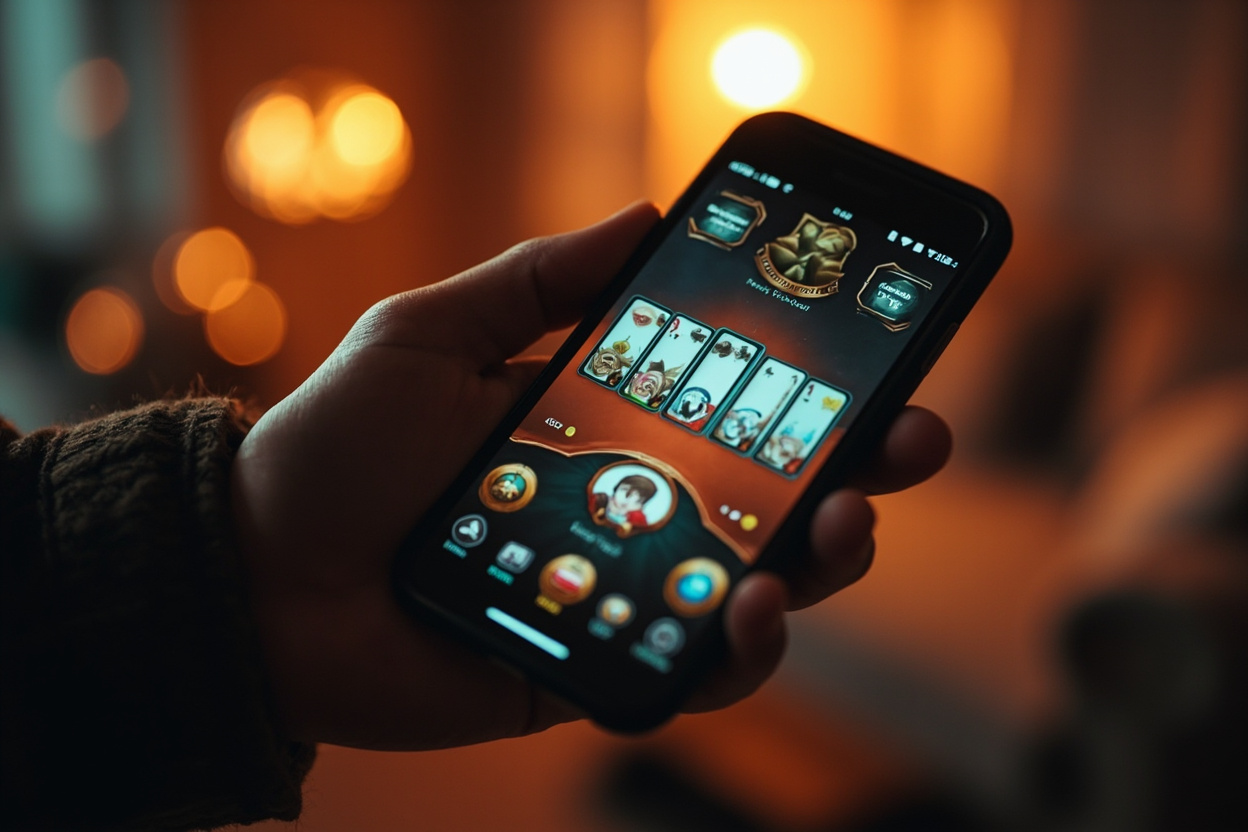
Notification preferences are the first thing to revisit after install. The default is "all on" — every tournament alert, every hand waiting for you, every withdrawal processed, every promotional push. That default is loud enough that most players mute two of the four categories within the first week. The sensible split is to keep tournament alerts and withdrawal confirmations on (these are the notifications that protect your time and your money) and to mute hand-waiting alerts (the app already shows you on the home screen) and promotional pushes (the platform's marketing always finds another way to reach you, often through email).
Sound settings deserve a separate decision. The default table sound pack includes a card-flip chime, a turn indicator, a chip-stack click and a win sting. On a phone, this is louder than it appears in the preview — the table sound is mixed at the same level as your ringtone, and a turn indicator at the wrong moment will wake a household. The settings panel lets you drop the table volume independently of the system volume and lets you disable individual cues. Most regular players keep the turn indicator (useful) and the win sting (psychological reward), and disable the rest.
Table display options affect how much information you see per hand. The two settings that matter are the card-size scale (compact, default, large) and the sort order for your hand (by suit, by rank, by sequence). The default of "default card size, sort by suit" is fine on a recent phone but is cramped on a smaller device. Switching to "large cards, sort by sequence" makes the table read more like a physical hand and reduces the cognitive load of seeing a meld opportunity. If you wear reading glasses, switch to large before your first session rather than discovering the option later.
Language settings are the easiest to overlook. Most rummy apps ship in English and one or two regional languages, and the default follows your device language rather than your reading preference. If your device is set to English but you read the local language more fluently, switch the app to that language in the settings panel — the table terminology (especially the sequence and set naming) is technical and is harder to follow in a second language under time pressure. The translation quality varies by platform, so if you find the local-language labels confusing, switch back to English; do not assume the app's English is worse than its translation.
Biometric login (fingerprint on Android, Face ID on iOS) is the single highest-leverage security setting in the app. With biometric login enabled, the app unlocks only when the biometric succeeds — a stolen phone with a locked screen cannot open the app even if the thief guesses your password. Without biometric login, the app falls back to your password, and your password is the only thing protecting the wallet. Most platforms also allow you to require a fresh biometric for withdrawals above a threshold, which is the correct setting for any wallet over a few hundred rupees. If your device does not support biometrics (older Android devices, some low-end models), use a strong PIN and a short auto-lock timer instead.